Manual Installation Guide
For Chrome users who can't access the Web Store, follow this guide to install the extension manually. Edge users should install from the Edge Add-ons store
-
1
Download and extract the
.crxfileClick the "Download Installer" button on the homepage to get the zip file. Unzip it to find the
.crxfile.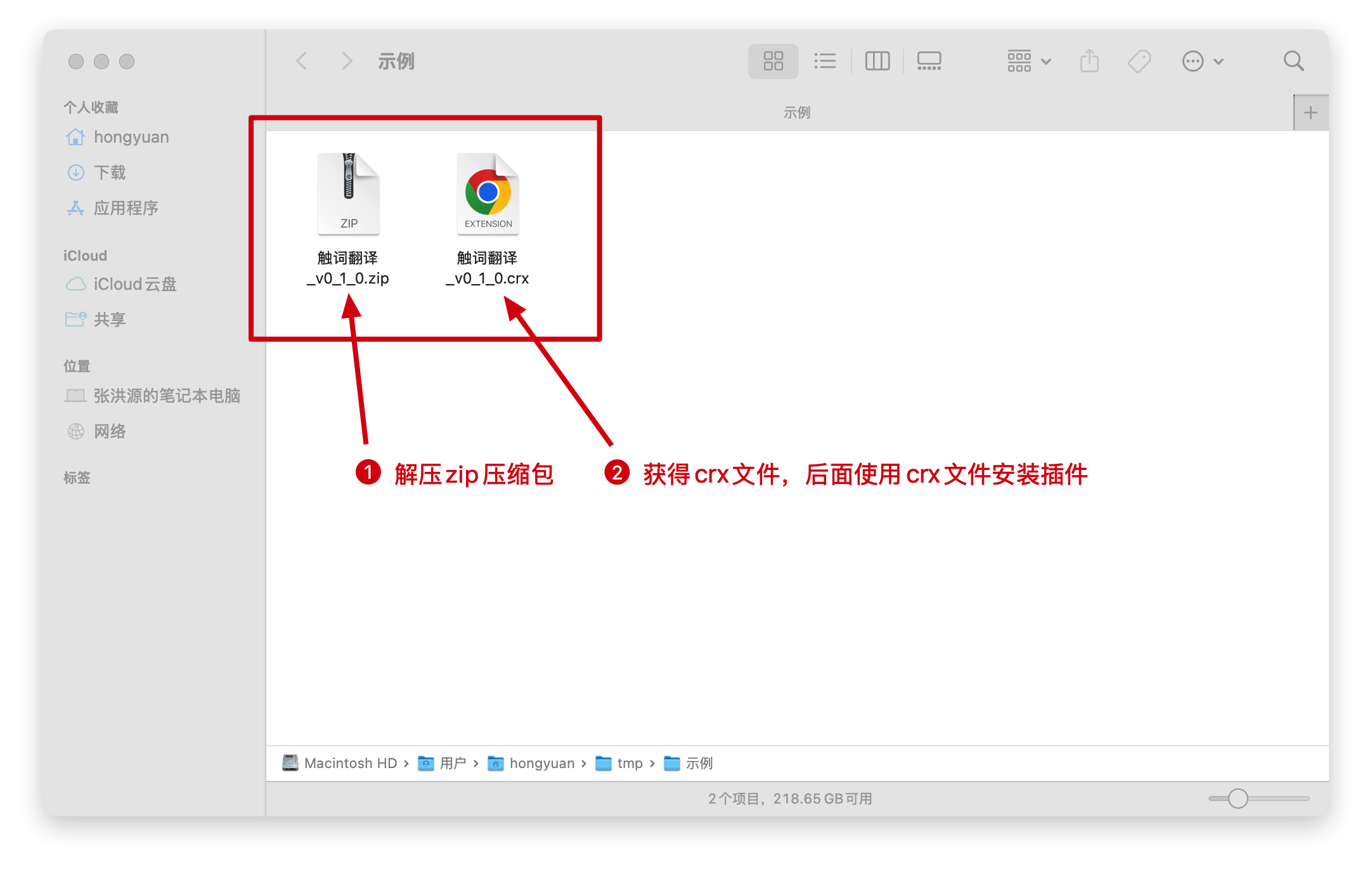 Click to enlarge
 -
2
Open the Extensions Management Page
Choose one of the two methods below:
Method 1: Via the MenuOpen Chrome → Click the three dots (top-right) → Extensions → Manage Extensions.
Method 2: Via the Address BarEnter the following in the address barchrome://extensionsMethod 1: Accessing via the menu. 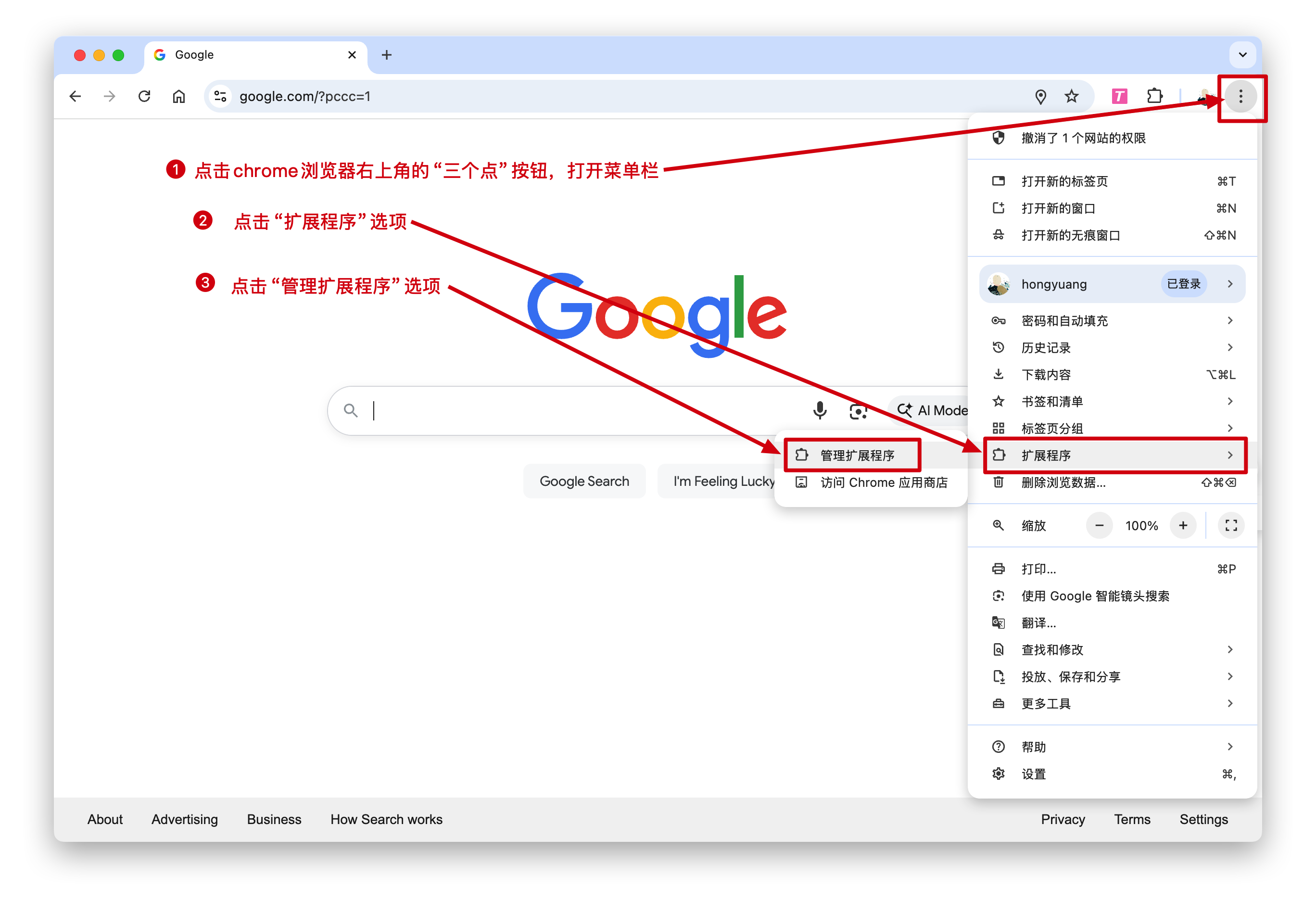 Click to enlarge
 -
3
Enable Developer Mode and Drag to Install
On the Extensions page, turn on the “Developer mode” toggle in the top-right corner.
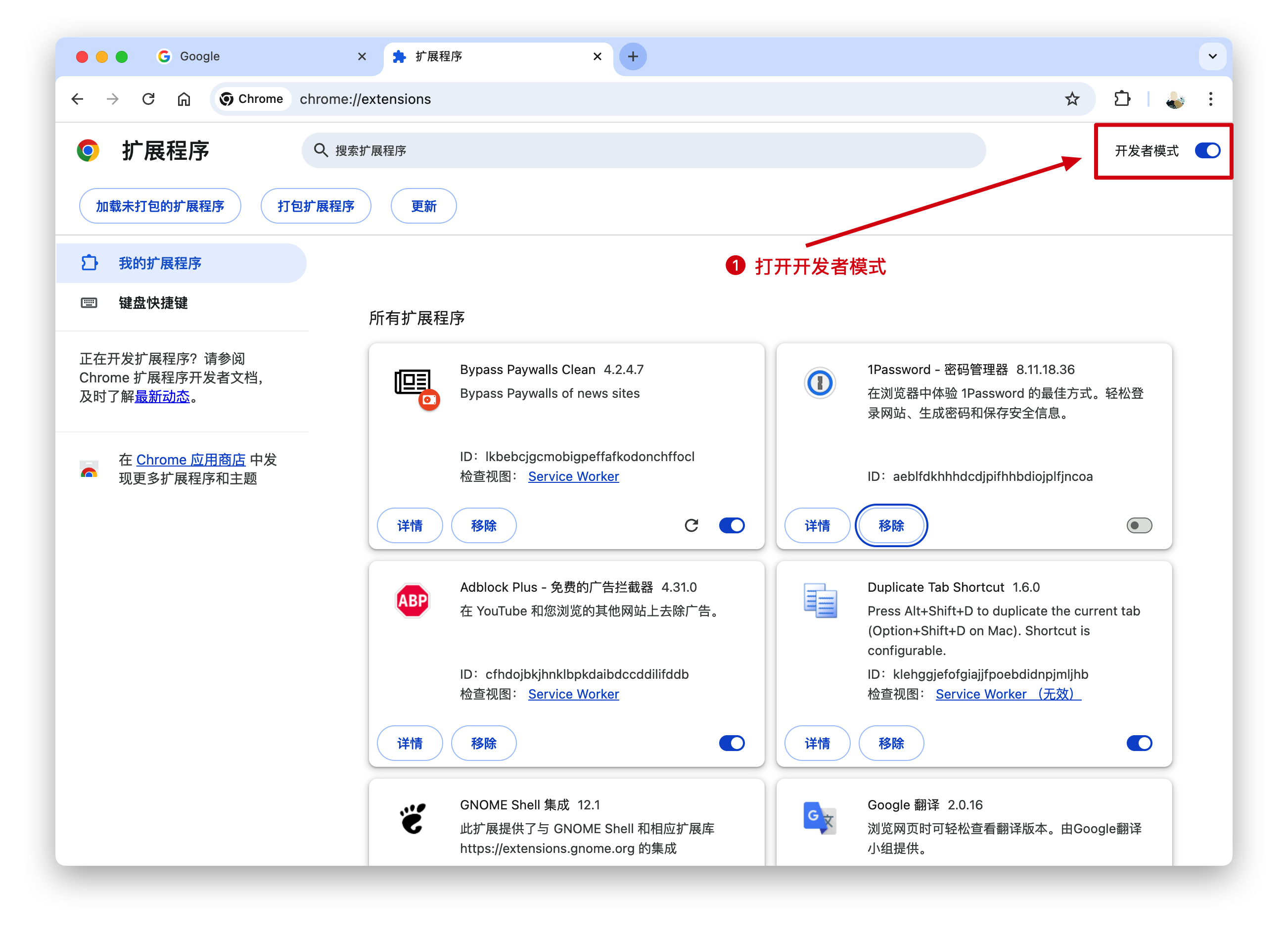 Click to enlarge
Then, drag the
.crxfile onto the page to install. Make sure Developer Mode is enabled first.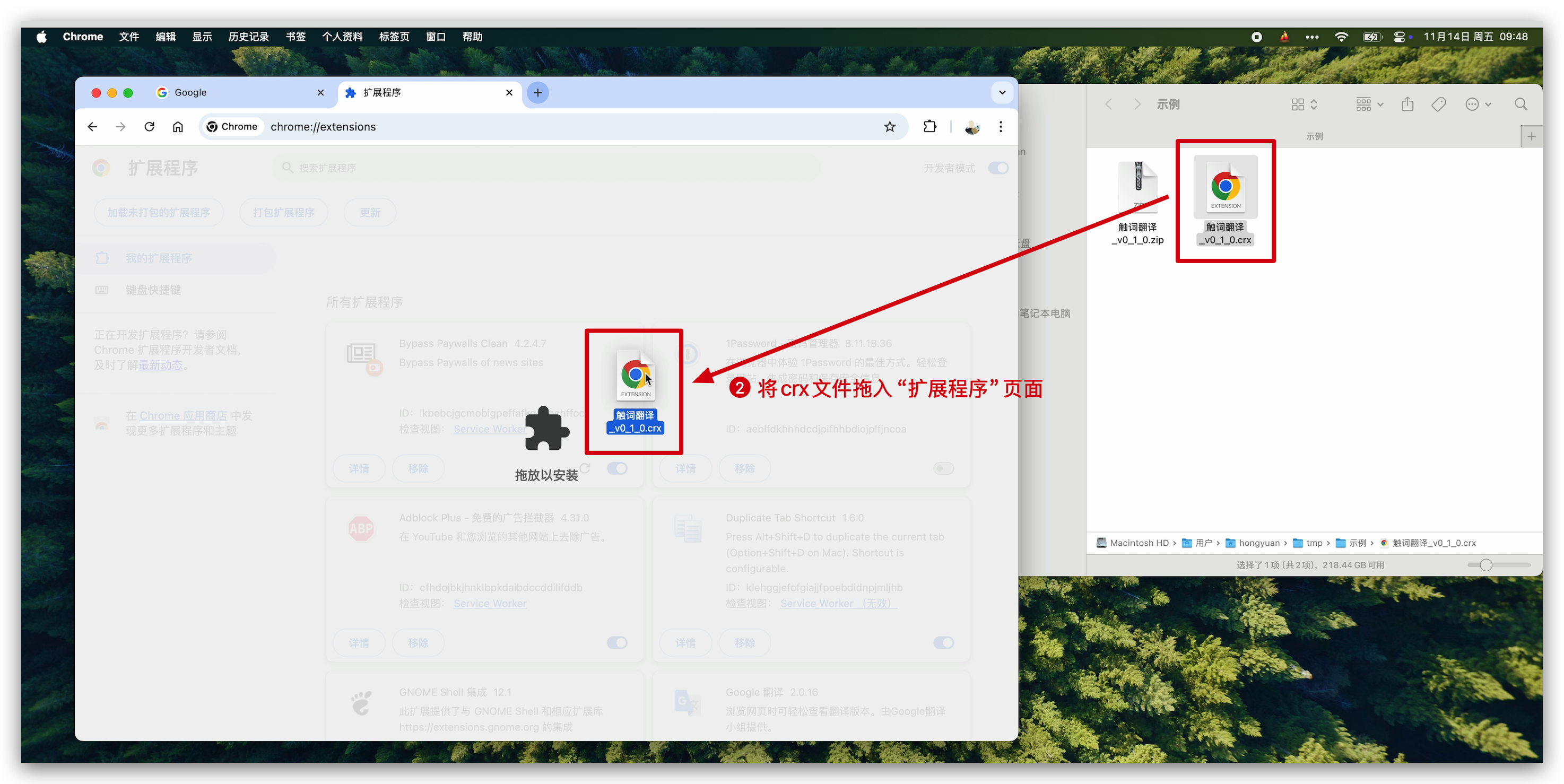 Click to enlarge
 -
4
Confirm Successful Installation
If you see “TapWord Translator” in your extensions list, the installation was successful.
If not, please quit your browser completely and try these steps again. Contact me if you still have issues.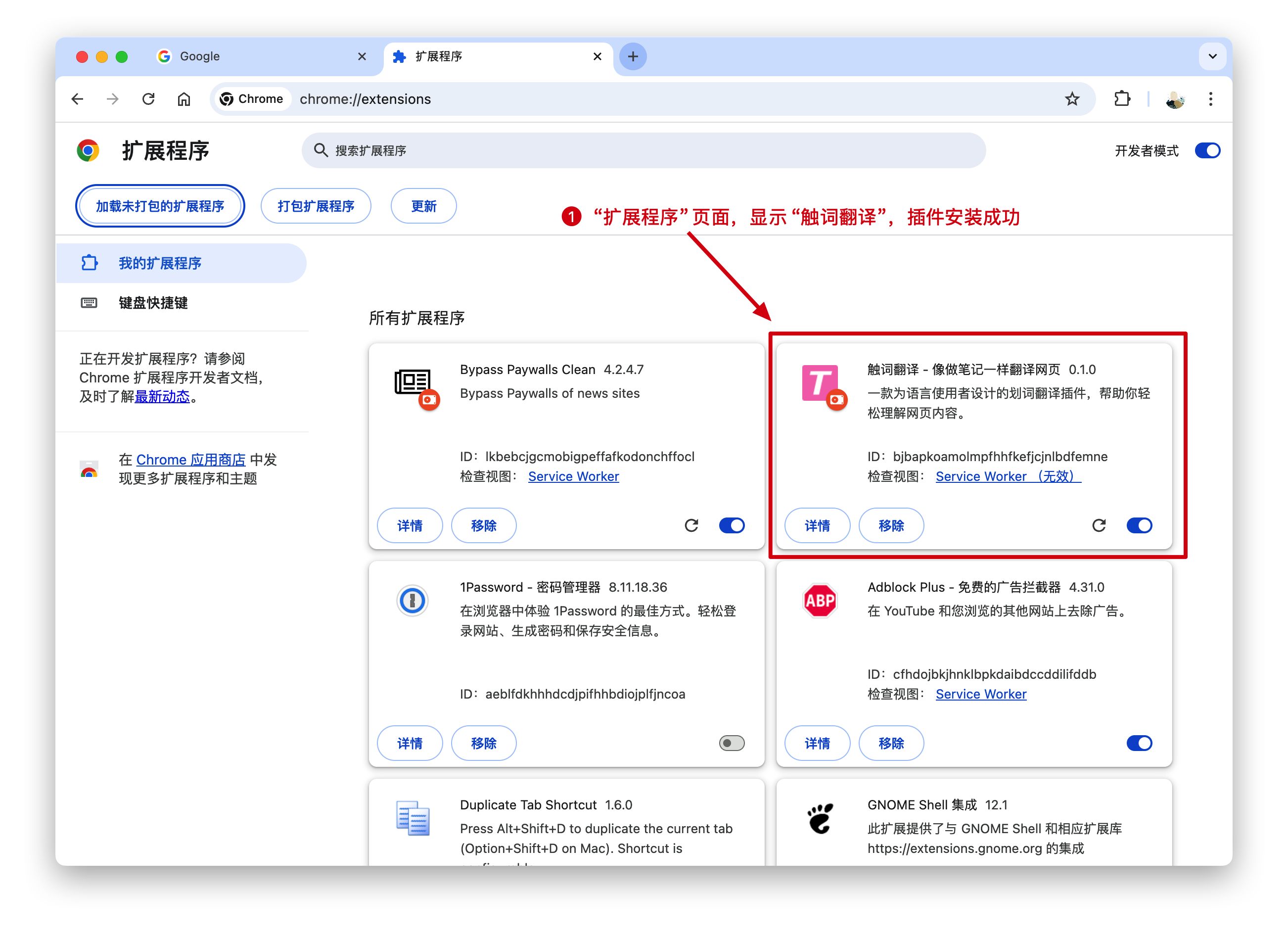 Click to enlarge
You can pin the extension to your toolbar for easy access.
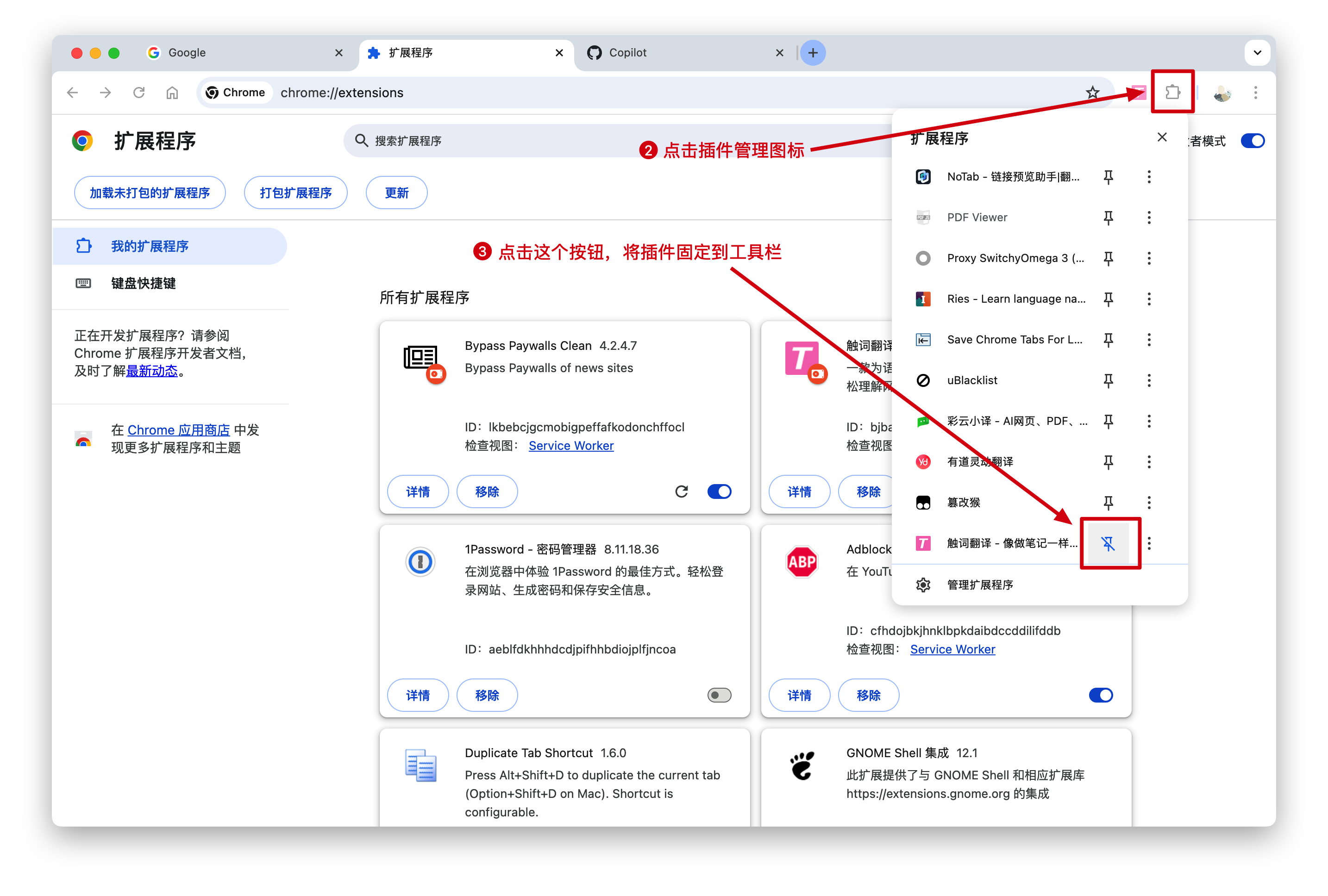 Click to enlarge